 pinger
Turn your phone
into a shortcut keypad
Still deciding which keypad to buy?
Try this app first.
Your phone becomes the keys. Arrange them however you like.
Drawing, editing, coding, no more memorizing shortcuts.
Register the phone as a Bluetooth keyboard No driver, no settings on the computer. The phone registers itself as a Bluetooth keyboard and then behaves like any other one.
Two-finger right swipe, register HID
Open the app with the phone sideways. A two-finger swipe right opens the status panel. Pick your platform (Win / Mac / iPad / Android), tap "Register HID", and the phone is registered as a Bluetooth keyboard.
Pair on the computer
Tap "Discoverable" on the phone, then look for that name in the computer's Bluetooth list — it's printed on the status page. Once paired, come back and tap "Connect keyboard".
Try it in a text editor first
Open a text editor and press a few keys. Letters appear, you're done. To stack modifiers, hold a top or side key and turn a knob. Two-finger left switches presets, two-finger up opens the edit panel, where skins and key positions live.
The first launch walks you through it, six steps: swipe right for status → register HID → become discoverable → pair on the computer → connect the keyboard → try a key. It won't nag you again, and you can replay it from the edit panel. Prefer it on paper: the one-page guide, or download the PDF while you install. You need Android 9 or newer.
One screen, three modes The shortcut keypad is the default. The other two switch from the edit panel; each keeps its own layout, so nothing needs rearranging.
One hand on shortcuts, the other on the mouse or pen. This is the one you'll use for retouching, editing and modelling.
A 102-key ANSI layout with a nav cluster and numpad on the right. When you need to type, the whole screen is a keyboard.
DualSense shape and layout: both sticks, d-pad, shoulder buttons and touchpad. For games that take a controller.
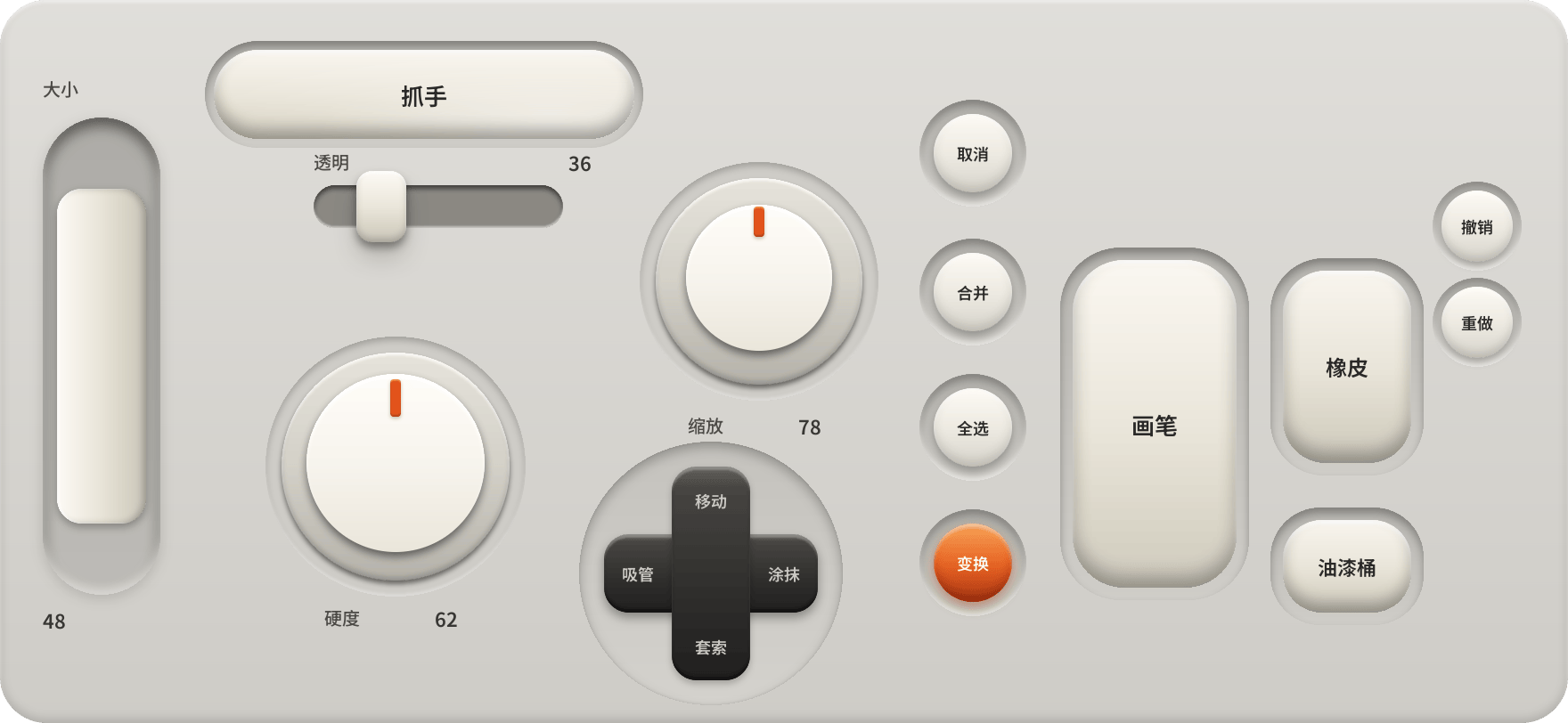
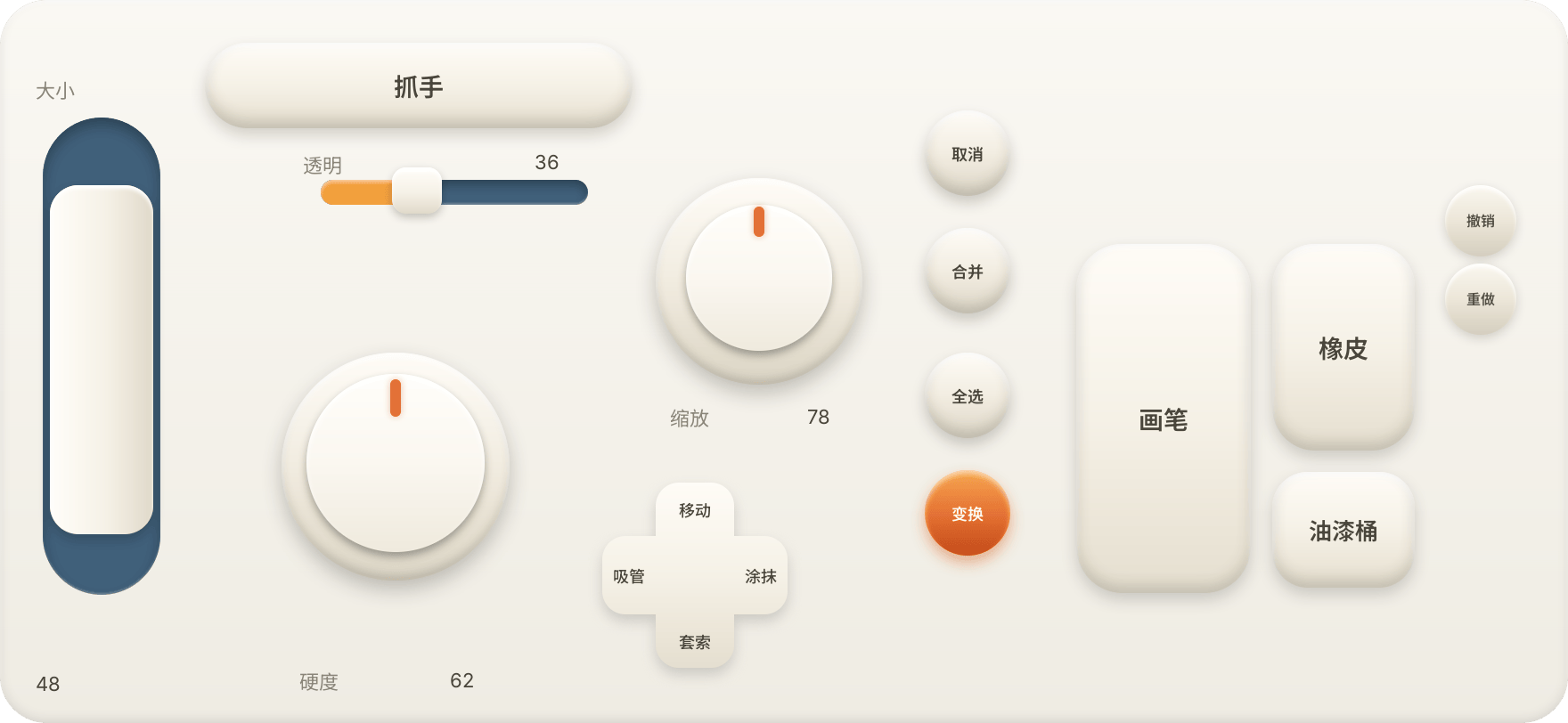
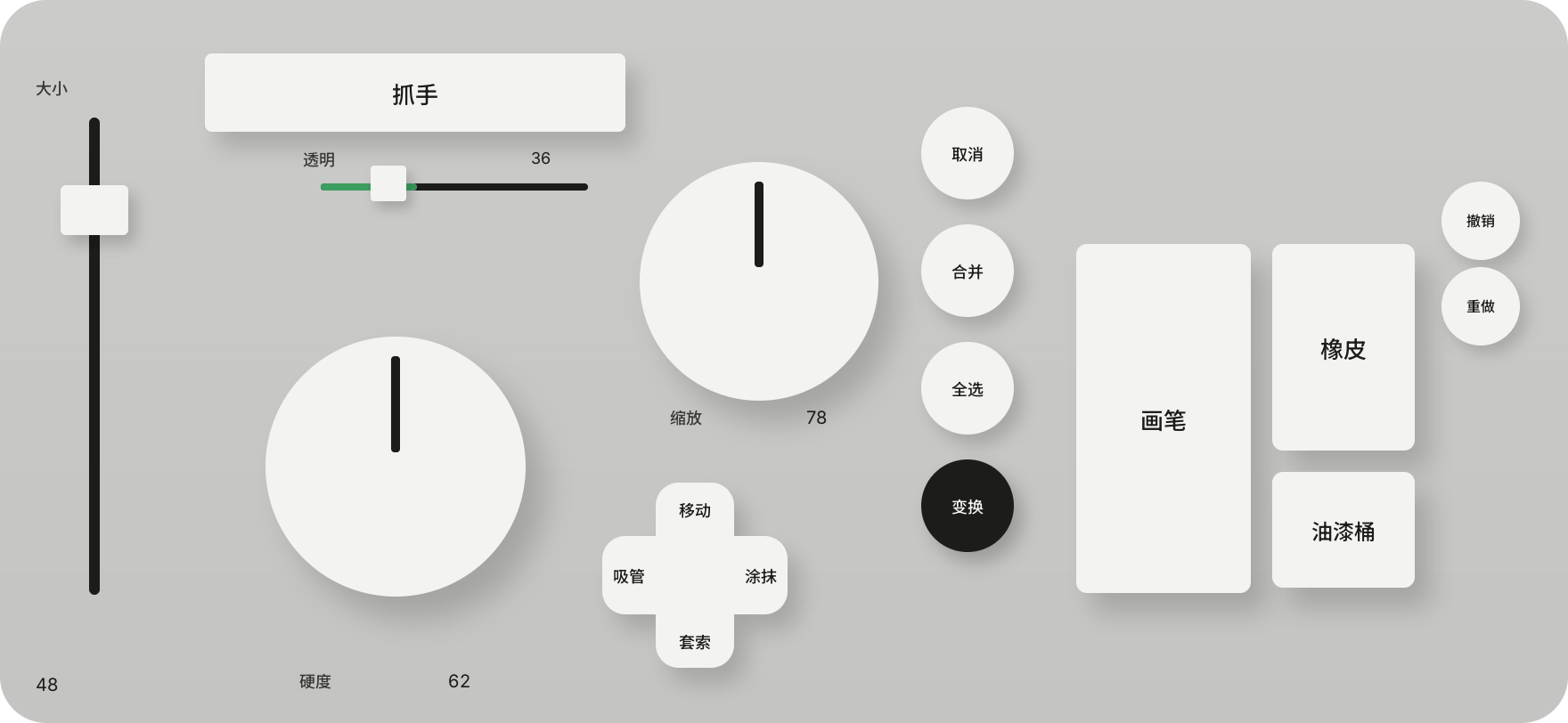
Nine layouts come built in. Swipe left to switch.Each follows that app's own shortcuts, so there is nothing to fill in. Photoshop loads by default; the labels below are what its keys actually say.
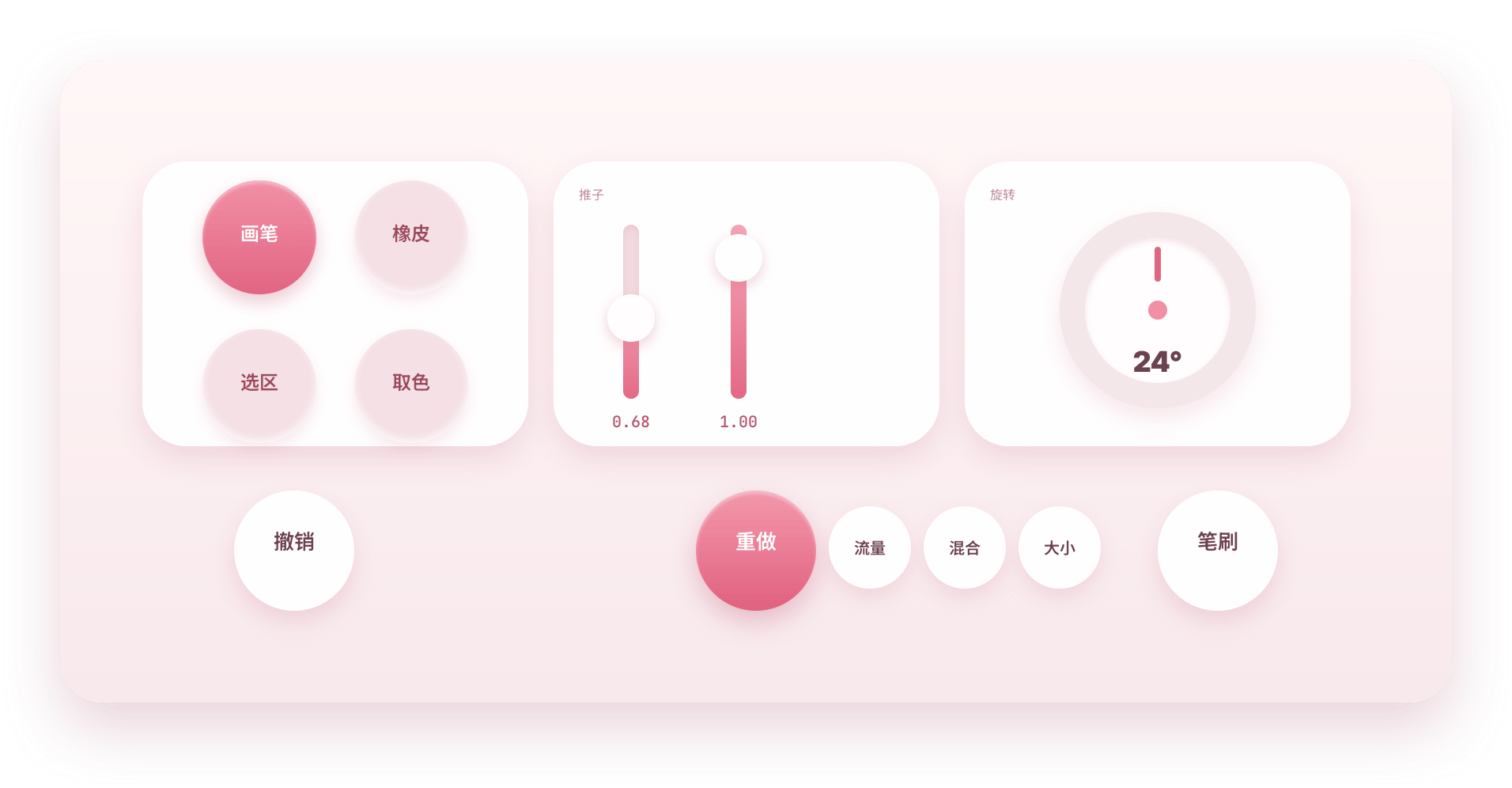
Lay the phone flat, rest four fingers on it Lay it sideways to the left of the mouse. Rest your left hand on it and four fingers fall into three zones: the left 24% is sliders and knobs, the middle 52% the hand key and d-pad, the right 24% brush, eraser and fill. Your thumb barely moves, and your right hand never leaves the mouse.
If HID won't register, go WiFi Try Bluetooth first — it only needs the app on the phone. Some phones ship without Bluetooth HID, so registration fails outright. In that case use WiFi and let the computer press the keys.
Bluetooth HID Recommended
- The phone is the keyboard; nothing on the computer
- Pairs with Win, Mac, iPad and Android tablets
- Set the host to Mac or iPad and Ctrl becomes Cmd
- Some phones ship without Bluetooth HID; registration fails
BluetoothHidDeviceWiFi Channel Fallback · in testing
- The phone connects to ws://PC-IP:8766, and Pinger Settings on the computer presses the keys.
- Layouts and hotkeys use the same port, so one connection covers both
- Only this channel needs the desktop app
- Still in testing: drops and reconnects are normal
- The desktop app must be running, on the same WiFi
8766 = keys + syncThe desktop app only matters for WiFi Pinger Settings is a portable little Windows app: unzip, run, no installer. On Bluetooth it plays no part — install nothing. The WiFi channel is still in testing and not very stable, so don't make it your only route.
Same computer, two ways in Two routes
Pick one. On Bluetooth the phone is the keyboard and the computer sees real key presses; on WiFi the phone sends presses and the computer replays them.
Pinger Settings Windows · in testing
- Edit layouts.Drag keys, resize them, drop one in temporarily — far more precise than poking at the phone. Hit "Send to phone" when you're done.
- Edit hotkeys.Fill in what each key sends, save layouts as presets, pass them back and forth with the phone.
- Press for the phone.For phones that can't register Bluetooth HID. Presses go over 8766 and the computer injects them; Chinese text and voice results travel the same way. This part is still in testing — reconnect if it drops.
8766 = sync + keysiOS is still in progress The build will land here when it's ready — not yet. Until then, use the Android phone you already have.
No schedule; I can't say when. I'll say so here when it's done.
See the Android versionEight skins, same layout everywhere Clay, Cream, Braun, Brutal, Paper, Obsidian, Rubber, Sakura. Keys and gestures are identical across all eight, so switching never means relearning.
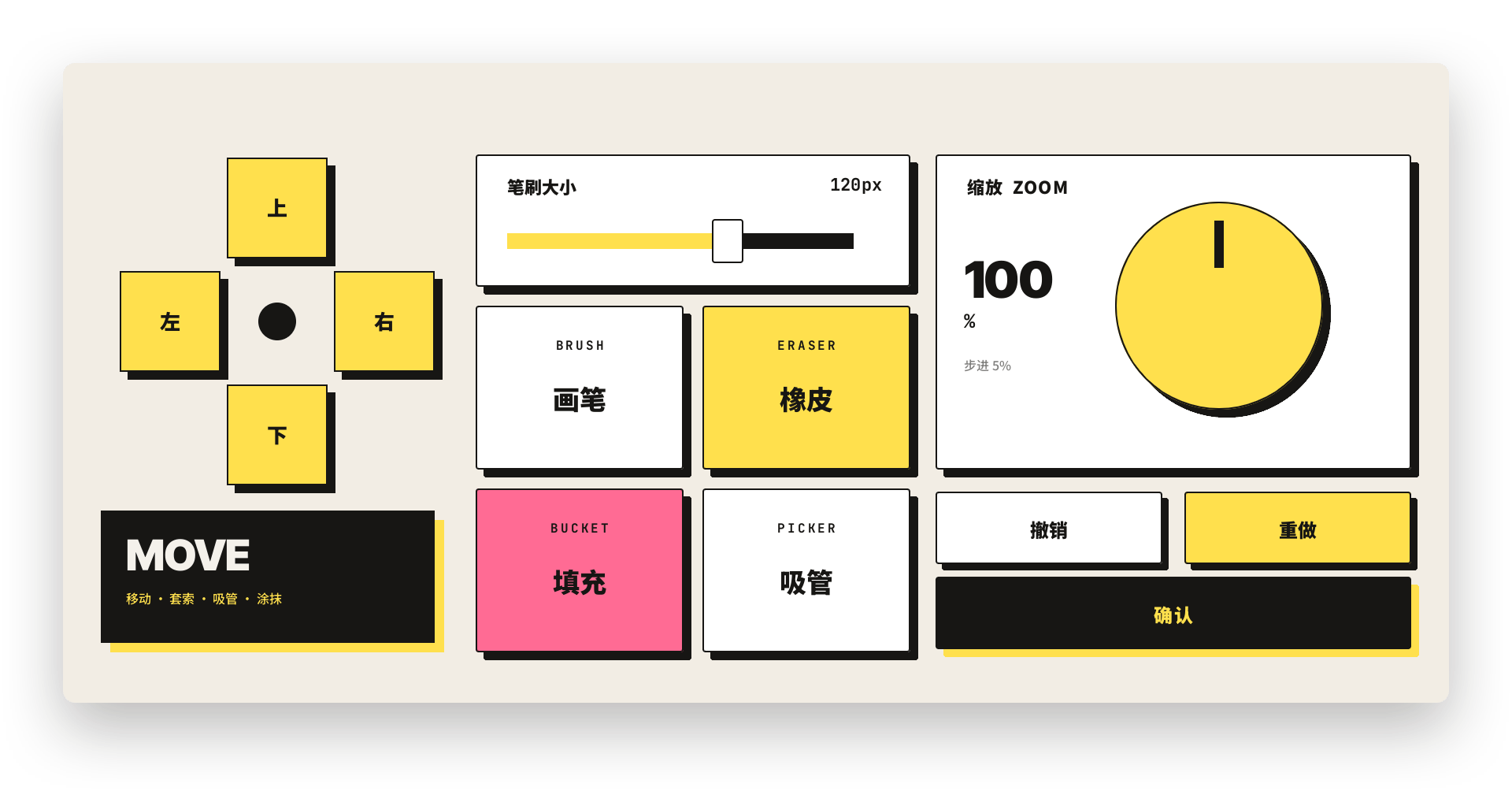
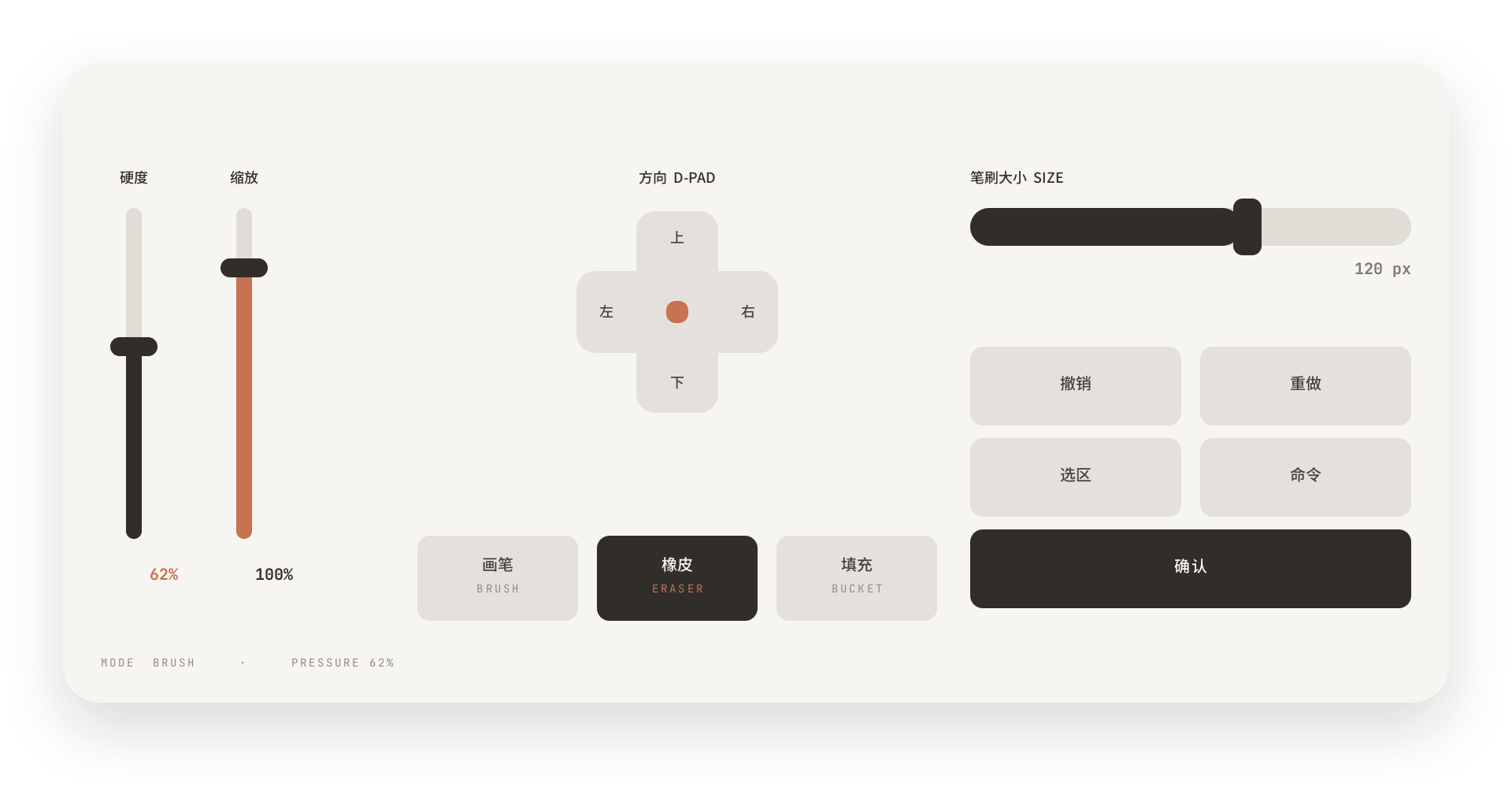
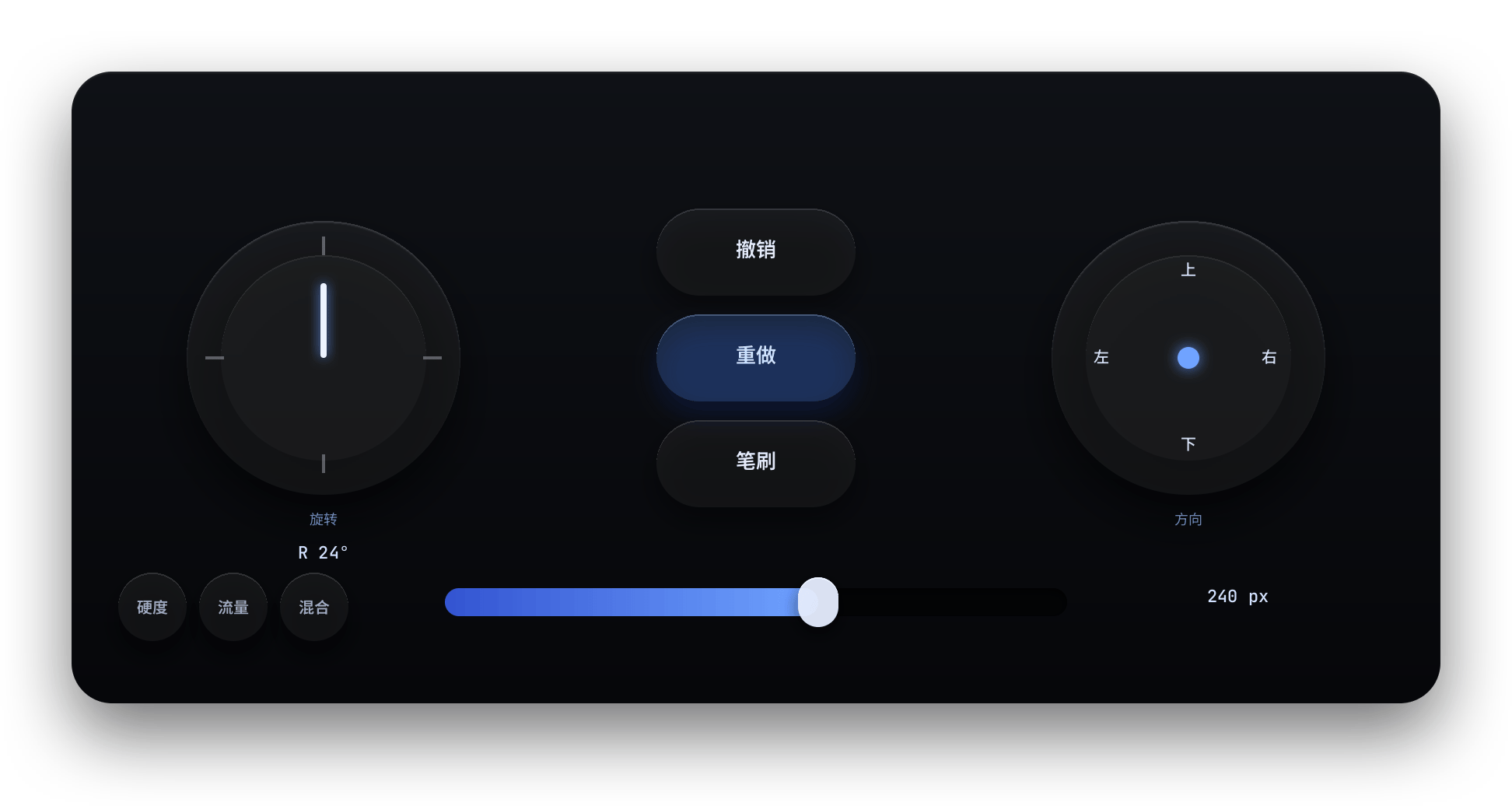
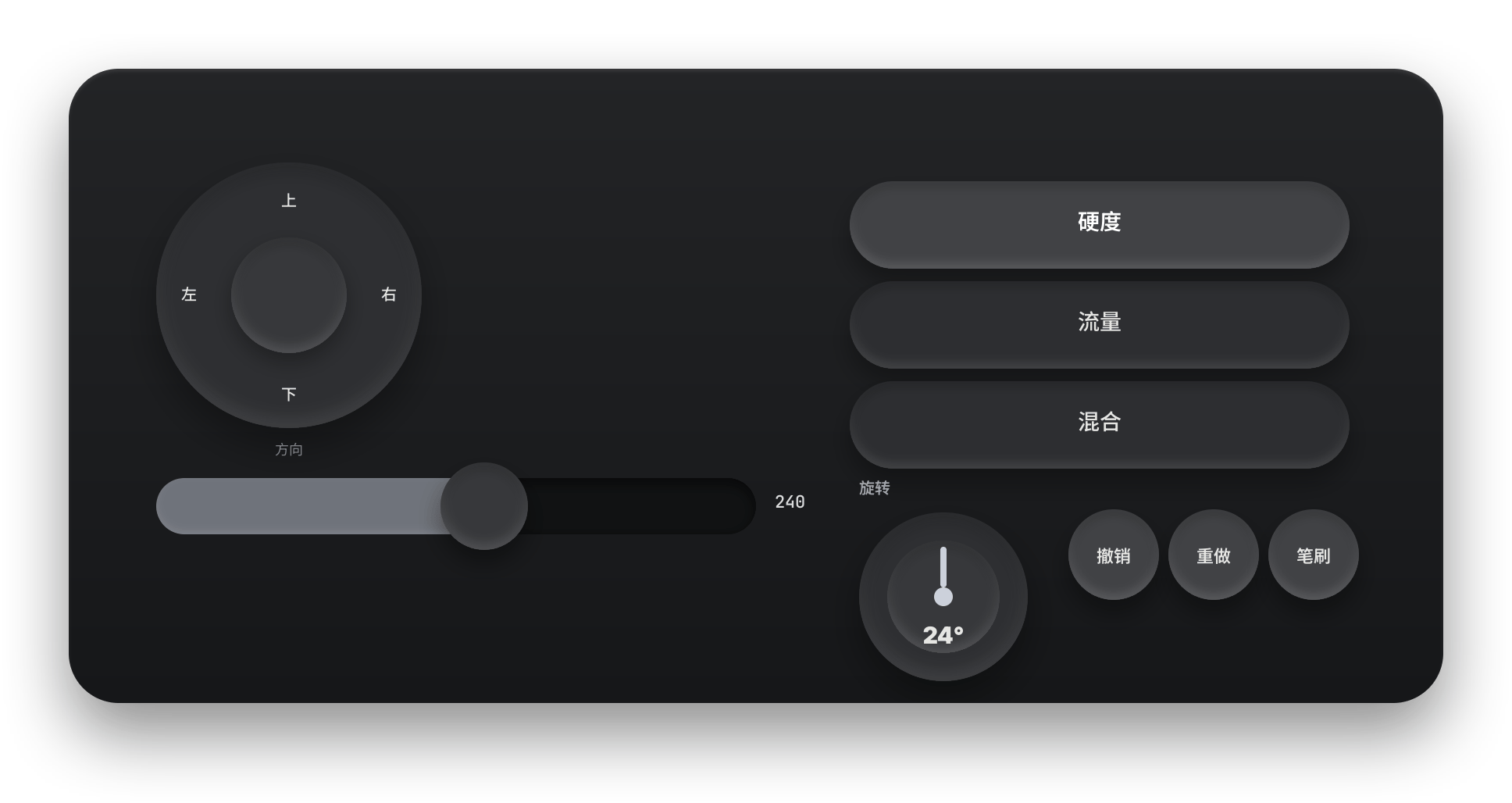
Not sure what a key does? Check the manual.
It labels the apps you use — Photoshop, Clip Studio, Procreate, CapCut, Vibe Coding — one diagram per preset. The text on each key is exactly the shortcut it sends. Flip through it once before you start; it beats memorizing.
Open the manual ↗Four gestures, no submenus Status, presets, editing, modifiers — all at the screen edge. One swipe out, one swipe back to work.
If it won't connect, start here: which computer, what IP, which host is set, and whether HID actually registered.
One layout is one preset. Retouching, editing, drawing — a swipe left swaps the whole panel.
Skins, key positions, the about box. To rearrange things at leisure on the computer, take the WiFi route and sync back.
Hold a top or side key and turn a knob or tap another key: that's Ctrl / Shift / Alt. Let go and it's back to normal.
Which thing on your desk does it replace It can't match hardware for feel — no tactile bump, and blind typing takes a couple of days. What it wins: one less thing to carry, and layouts you can change any time.
| Pinger | Numpad | Dedicated controller | |
|---|---|---|---|
| Hardware | Your phone, already there | Buy another, carry it out | Buy one, carry it out |
| Layout | Edit on screen, keep several | Printed on the keys, fixed | Editable in software, few keys |
| Knobs | Three knobs + two sliders | Usually none | Yes, usually one or two |
| Cost | 0, you own the phone | Tens of dollars | Usually four figures |
| Desktop | Nothing to install on Bluetooth | Plug and play | Needs a driver |
| Blind typing | Takes practice; glass gives nothing back | Natural | Natural |
Prices are rough ranges and vary by region. For real muscle-memory blind work, hardware is still steadier. Pinger's pitch is simple: you already have the phone, so don't rush out for a third pad.
Known issues
Several Chinese ROMs removed Bluetooth HID, and registration fails outright. Those phones can use the WiFi channel instead — same result, just keep Pinger Settings running.
MIC needs the system speech recogniser and that path isn't finished over Bluetooth, so it stays greyed out in this build. Every other key works.
The host on the status page has to match the computer. Left on Win, Ctrl won't become Cmd and nothing fires.
After pairing two or three computers, or reinstalling the OS, stale entries sit in the Bluetooth list looking connected but dead. Delete the old entry on both sides, register HID again, pair once more.
A few models get rejected by the system during pairing, with only a generic failure on screen. The fastest route: plug the phone into a computer, hand the build to an agent, and let it read the logs. That has rescued quite a few devices.
What it asks for, and what it doesn't The APK installs directly and the system throws a few dialogs at you. Here's which are required and which you can refuse, so you're not guessing mid-install.
Registers the phone as a Bluetooth keyboard and sends key presses. Refuse it and only the WiFi channel works.
Only for speech on the MIC key, through the system recogniser. Nothing is recorded or stored. That key doesn't work over Bluetooth yet.
Connects to :8766 on the computer; keys and layouts both use it. Same WiFi only, never the public internet.
No account, no ads. It doesn't read contacts, photos or location; layouts and presets stay on the phone and go nowhere.
Just install the APK on the phone Bluetooth needs no desktop app at all. Only WiFi needs Pinger Settings on Windows, and that is still in testing. iOS isn't out yet; it'll be listed here when it is.
Pinger for Android
v1.0.2beta
The APK lives on Quark Drive — open the link, code 8iH6. No account, no ads; layouts stay on the phone.
Pinger Settings WiFi only · in testing ↗
Portable build: unzip and run. On Bluetooth you can ignore it completely; on WiFi it presses keys for you, and you can edit layouts on the PC then save them back. Still in testing, so expect the odd reconnect. Same Drive folder as the APK.
Pinger for iOS In progress
Still in progress, no build yet. It'll show up here.
Guide PDF · one page ↗
First-time pairing, what to do when it fails, which Bluetooth entries to clear after switching computers — all on one page you can print and follow. For the web version, use "Guide" in the top bar.