
Pinger guide
v1.0.2beta · Android
01What to installThe phone app is required, the desktop one isn't
Phone · Pinger Required
Every key lives here. Install it, open it, allow Bluetooth.
PC · Pinger Settings Optional
Only for WiFi, or for editing keys on the computer.
02Connect once, then just open the phoneBluetooth HID, no driver on the computer
On the phonePINGER
- 1Open Pinger and allow Bluetooth.
- 2Turn it sideways, then two-finger swipe right for the Status panel.
- 3Pick the host: Win / Mac / iPad / Android. Mac and iPad swap Ctrl for Cmd automatically; pick the wrong one and the keys won't match.
- 4Tap Register HID and the phone is registered as a Bluetooth keyboard.
- 5Note the host search name on the panel, tap Discoverable, allow the system prompt. That name is often just the phone's Bluetooth name, not necessarily Pinger.
On the computer or tabletPair first, then connect
- 6Find the name from step 5 in system Bluetooth and pair. Windows: Settings → Bluetooth & devices → Add device
- 7Back on the phone, open Paired hosts, pick your computer, tap Connect keyboard. Windows still listing it as a phone is normal — the keyboard channel isn't up yet.
- 8When the status reads Connected, open a text editor and press a key.
You pair once. To switch computers, tap "Disconnect to switch" in the status panel first.
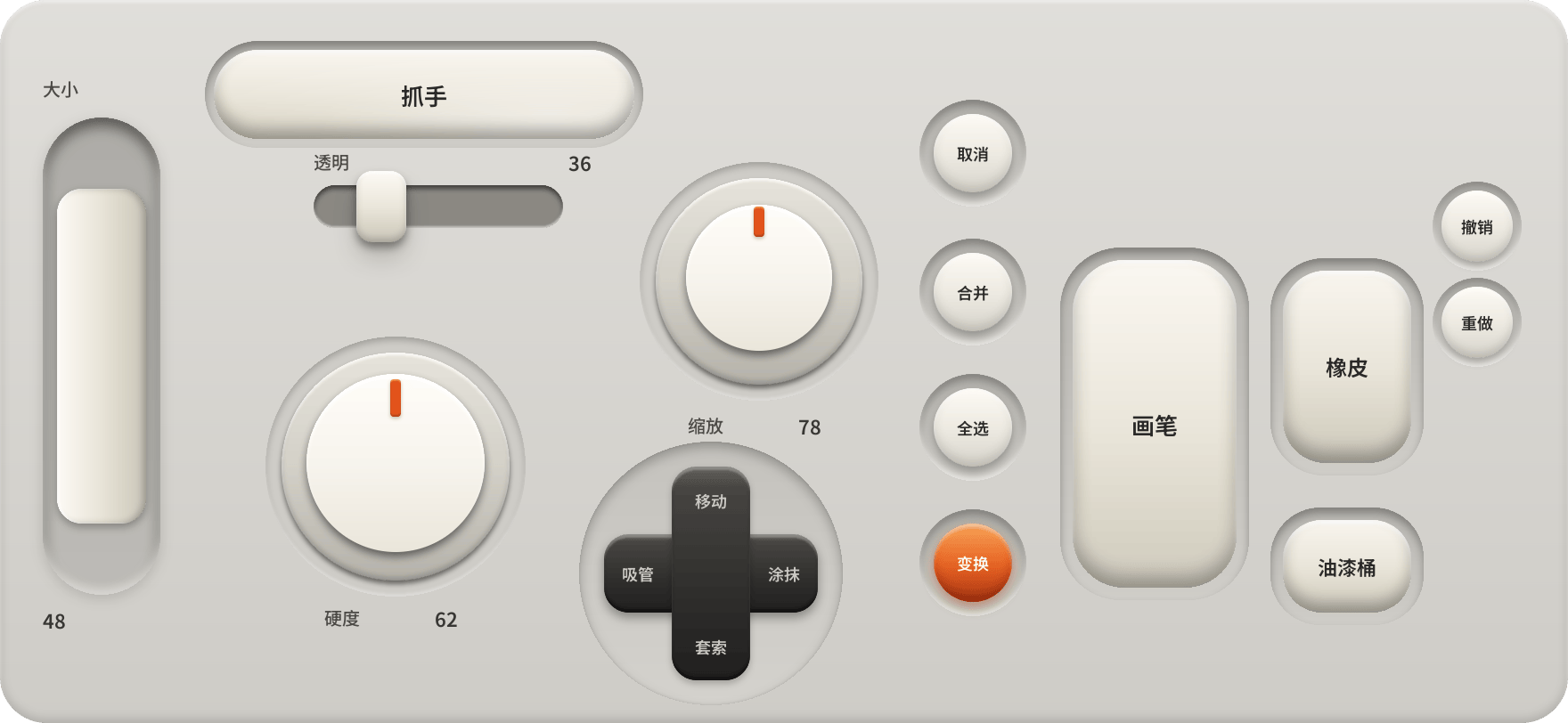
03Three gestures, all two-fingerOne finger is for keys
04How modifiers work
Hold one key down (1), then turn a knob or tap another key (2) — that's the combo. Same as a physical keypad.
05When it won't connect
Can't find Pinger
Search for the name the panel shows. Some ROMs won't let the app rename Bluetooth, so the panel prints the real one.
Windows shows a phone
Normal. Only the device pairing is done; the keyboard channel isn't up. Go back and tap "Connect keyboard".
Switching computers breaks it
Two machines fight over the old pairing. Delete it on both sides, then Register HID → pair → Connect keyboard again.
Bluetooth just won't work
Use WiFi: put both on the same network, run Pinger Settings, switch the phone's status panel to WiFi, type the IP shown at the top, tap "Connect".
06The panel behind two fingers upSix entries, changes apply at once
SkinsEight palettes, same keys
Edit layoutDrag keys where you want
HotkeysChange what each key sends
Full keyboardSwitch to the whole keyboard
PairingBack to the status panel
Import / exportPack layouts and go
Some devices just refuse. The security handshake won't pass. Plug the phone into a computer, send the build along, and let an agent read the logs.
New bug or a new fix? Post it
github.com/Miatoo/pinger/issues